Configuring the VESC2X3Bridge
Settings are changed through the web interface at http://192.168.5.1. To reach it, the bridge must be in Config Mode.
Entering Config Mode
There are two ways to enter Config Mode:
Method 1 - Dashboard button sequence (device already powered on):
- Hold the brake.
- While holding the brake, press the dashboard button once, then press it again in under 0.3 seconds and hold the button down.
- The rear light will blink a few times. Keep holding the power button for 2 to 3 seconds.
Method 2 - Power-on hold:
- Hold down the dashboard power button.
- While holding the button, plug in the battery (the bridge receives power).
Once in Config Mode, connect to the device Wi-Fi network VESC2G3Bridge or VESC2X3Bridge.
- Password: the MAC address printed on the device label (for example
A1B2C3D4E5F6, no spaces or dashes).
Open a browser and go to http://192.168.5.1.
Accessing Config Mode
This is the Config Mode interface of the VESC2X3Bridge. Here you can modify the behavior of the display, underglow, hardware revision, quick action button, profile bypass settings, and BMS Mode settings.
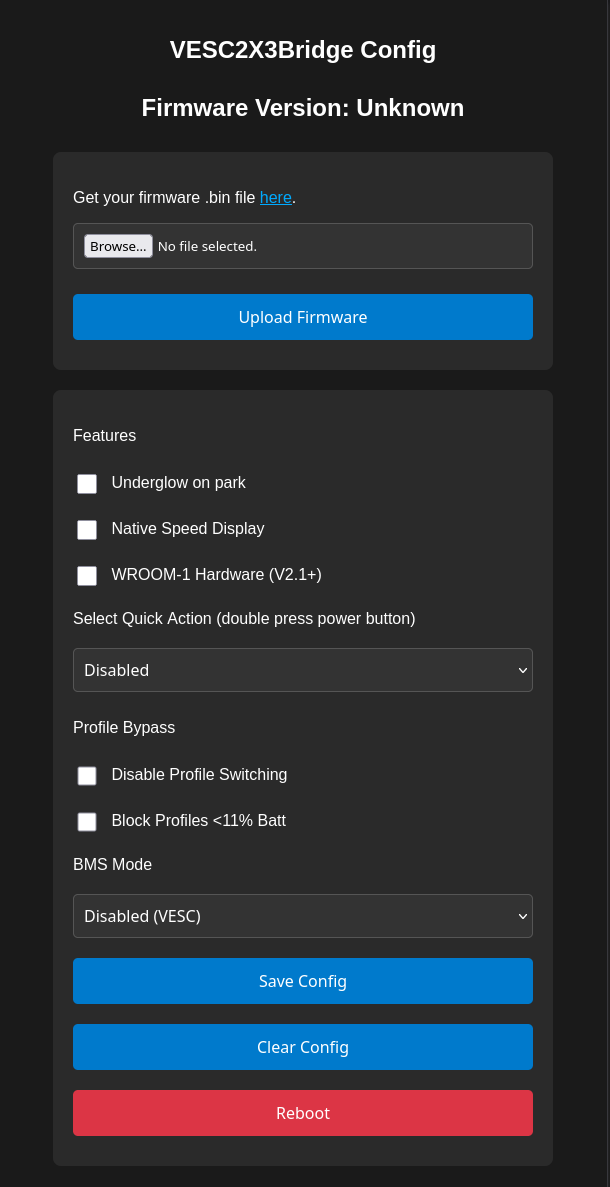
VESC2X3Bridge Config Mode
Config Mode Features
Features
| Feature name | WIP | Explanation |
|---|---|---|
| Underglow on park | X | When living in a region that doesn't allow underglow lights to be always enabled, you can enable this option to have them enabled only while the lights are on and the scooter is in park mode. |
| Native Speed Display | X | Enables the display to behave like the original, showing an overspeed warning when exceeding the maximum speed configured in the Segway Mobile app or SHU. |
| WROOM-1 Hardware (V2.1+) | X | When ordering the VESC2X3Bridge Flashing Service from the website, this option is enabled by default and shouldn't be disabled. Disabling it will cause the VESC2X3Bridge's pinout to not match the board. (The VESC2X3Bridge boots in Config Mode when the wrong hardware type is selected — plug in the lightboard!) |
Select Quick Action
Here you can select an action that is triggered when the power button is pressed twice quickly.
| Feature name | WIP | Explanation |
|---|---|---|
| Light Effect | X | Flashes the underglow lights twice per side, switching (Only works with Underglow on park is enabled!) |
Profile Bypass
| Feature name | WIP | Explanation |
|---|---|---|
| Disable Profile Switching | X | Ignores all Dashboard profile switching (apply profiles via the VESC Profiles tab). |
| Block Profiles <11% Batt | X | Ignores all profile switching below 11% battery. This bypasses the automatic speed limit that the VCU applies when the battery drops below 11%. |
BMS Mode
If you are running your original ninebot battery, choose "Ninebot BMS" in the dropdown menu
JBD2X3Bridge compatibility is still under development
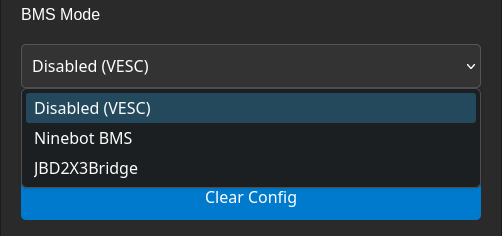
VESC2X3Bridge Config Mode — BMS Mode